TeraBox Player and Downloader for iPhone & iPad
Watch & Download in Safari — No App
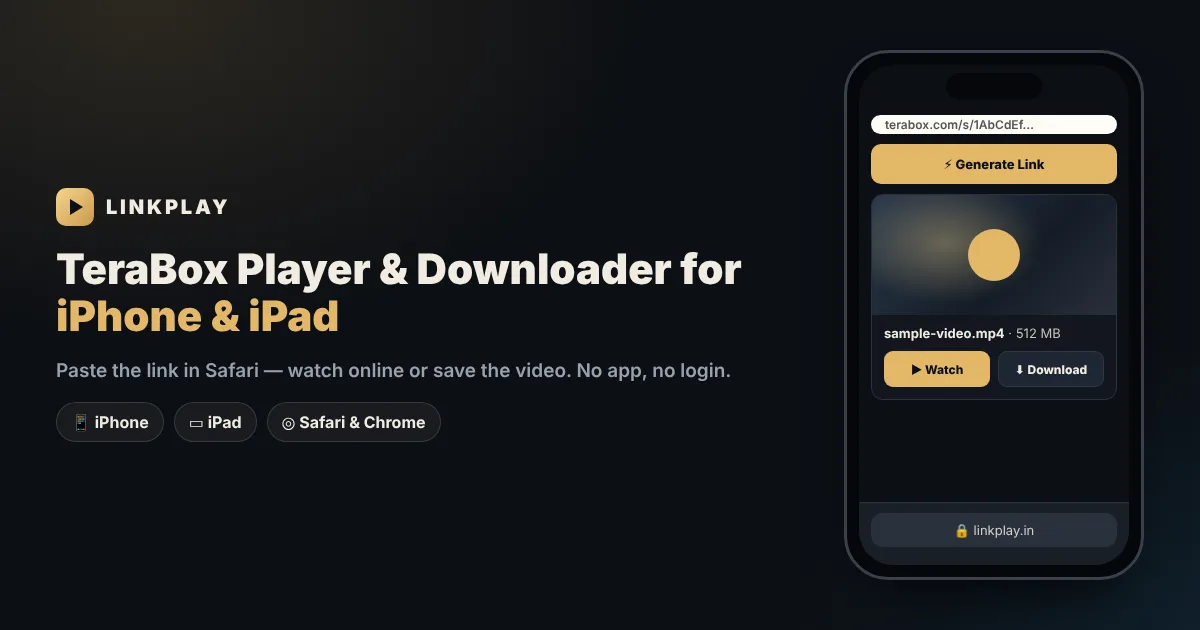
Paste a TeraBox link below and the video plays right inside Safari — or save it to your iPhone and move it to Photos. No TeraBox app, no login, no waiting. A free TeraBox player for iPhone, a TeraBox video downloader for iPhone and a TeraBox link opener for iPad in one page.
Why TeraBox Is Hard to Use on iPhone
A friend sends a TeraBox link on WhatsApp or Telegram. You tap it on your iPhone and, instead of a video, Safari shows a page asking you to install the TeraBox app, sign in, or continue in the App Store. For a single video, that is more effort than it should be.
- The app is mandatory on the TeraBox site — the mobile page keeps sending you to the App Store.
- A login is required — even if you only want to watch one shared file.
- Saving to the gallery is not obvious — many users cannot find where the video went after downloading.
- Some files just do not play — MKV videos show a black screen in Safari.
LinkPlay solves this in the browser you already have. It is a TeraBox player and downloader for iPhone and iPad that runs in Safari: paste the link and the video is ready to watch or save. No app, no TeraBox account and no storage used until you choose to download.
How to Open a TeraBox Link on iPhone in 3 Steps
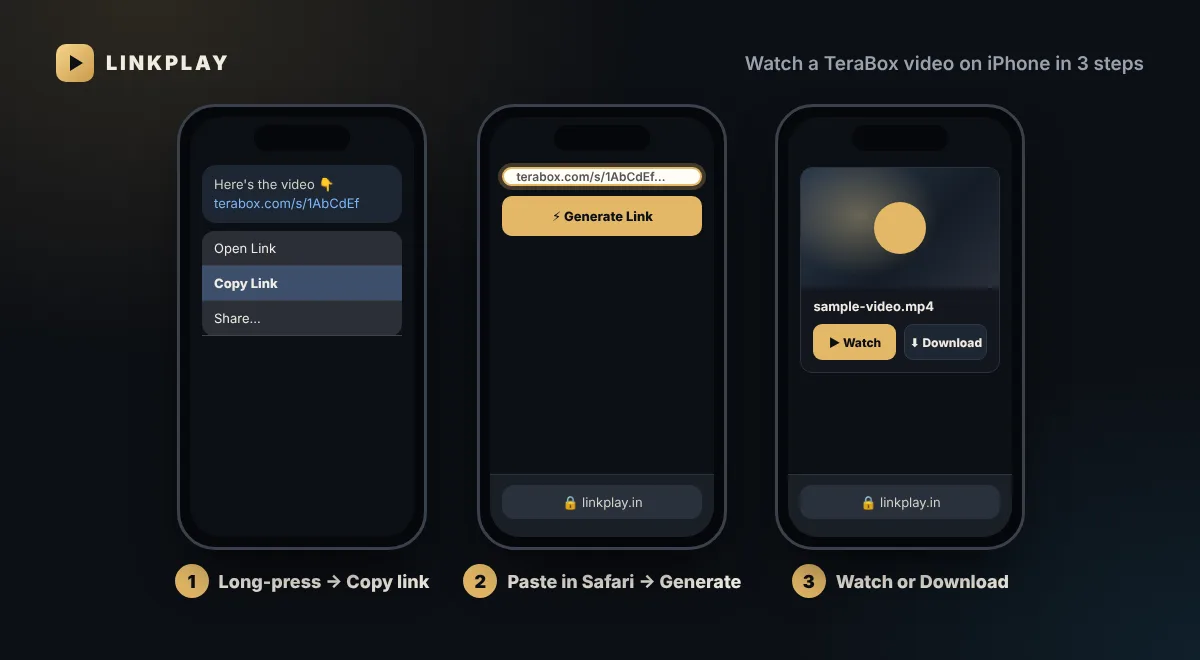
- 1In WhatsApp, Telegram or Messages, long-press the TeraBox link and tap Copy.
- 2Open linkplay.in in Safari, tap the box at the top, choose Paste and tap Generate Link.
- 3Tap Watch Now to play the video, or Download to save it to your iPhone.
What You Can Do With a TeraBox Link on iPhone
On an iPhone the choice usually comes down to storage: stream the video if space is tight, or save it if you want it in your gallery. Both work from the same page:
Watch TeraBox videos online
A TeraBox online video player for iPhone: the video streams in Safari and nothing is saved, which is useful when your storage is almost full.
Download the video
A TeraBox video downloader for iPhone: Download saves the original file to the Files app, ready to move to Photos.
Paste from any app
Links copied from WhatsApp, Telegram or Instagram work the same way, including 1024TeraBox and other TeraBox addresses.
No Apple ID, no TeraBox account
Nothing to sign in to and nothing from the App Store. Your Apple ID and TeraBox login are never involved.
Save a TeraBox Video to Your iPhone Photos
This is the part most people get stuck on. Safari does not put downloads straight into the Photos app; it puts them in Files first. Here is how to move the video to your gallery:
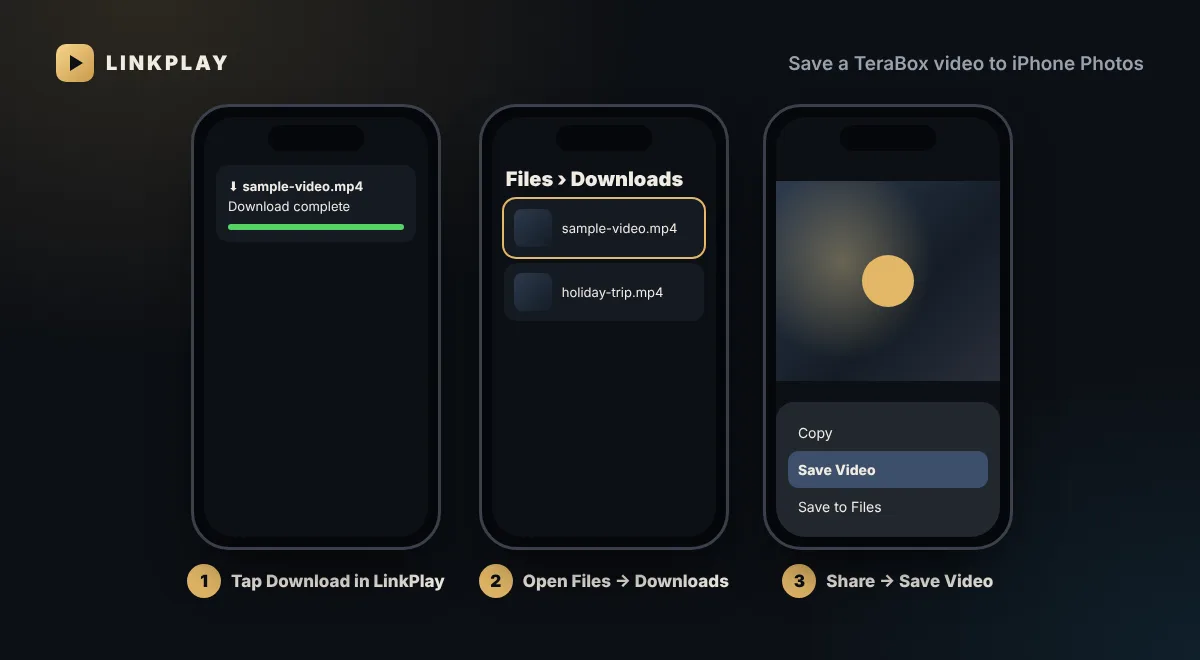
- 1In LinkPlay, tap Download and confirm with Download in the Safari pop-up.
- 2When the download icon in the address bar finishes, open the Files app and go to Downloads.
- 3Open the video, tap the Share button and choose Save Video.
- 4The video is now in the Photos app, in Recents. You can delete the copy in Files to free up space.
Where Do Downloaded TeraBox Videos Go on iPhone?
Safari saves every download to the Downloads folder of the Files app. By default that folder is in iCloud Drive; on some iPhones it is under On My iPhone. To choose the location yourself, open Settings › Safari › Downloads.
- Storage — the video card shows the file size before you start. Check free space in Settings › General › iPhone Storage.
- iCloud Drive — large videos saved to iCloud also use your iCloud storage. Choose On My iPhone if your iCloud is full.
- Download progress — tap the download icon in Safari’s address bar to see it.
Which TeraBox Videos Play on iPhone?
Whether a video plays depends on its format, not on LinkPlay. Apple supports some formats and not others:
| Format | Plays in Safari? | Save to Photos? | What to do |
|---|---|---|---|
| MP4 (H.264) | Yes | Yes | Watch online or download |
| MP4 / MOV (HEVC) | Yes, on modern iPhones | Yes | Watch online or download |
| MKV | No | No | Download and open in VLC for Mobile |
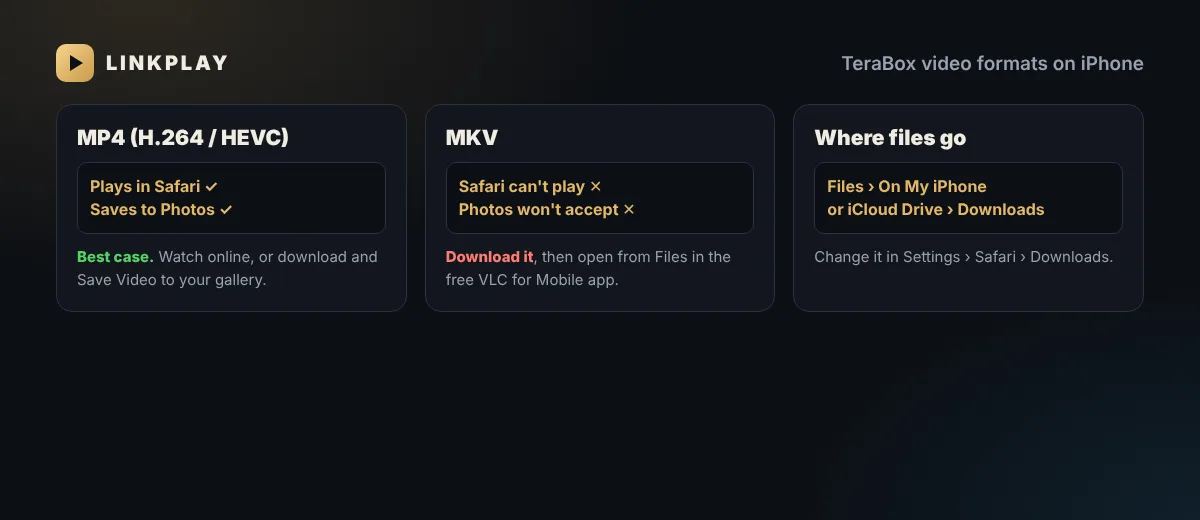
If a TeraBox video shows a black screen on iPhone, it is almost always an MKV file. Download it with LinkPlay, open the Files app, tap Share and choose VLC (free on the App Store). VLC plays MKV with sound and subtitles.
Using LinkPlay on iPad
On iPad, Safari loads the full desktop layout, so LinkPlay feels just like it does on a computer. A few things work especially well:
- Split View — keep Telegram or WhatsApp on one side and LinkPlay on the other, and drag the link across.
- Bigger screen — the video fills the iPad display in full screen.
- Files app — downloads go to the same Downloads folder as on iPhone, and can be moved to Photos the same way.
Resume, TV and Telegram on iPhone
- Continue watching — Safari often reloads tabs in the background. LinkPlay remembers where you stopped, so tap the video under Continue watching and it resumes from the same minute.
- Watch on TV — start the video, open Control Center and tap Screen Mirroring to send it to an Apple TV or AirPlay-compatible TV.
- Telegram — if your links arrive in Telegram, send them to the LinkPlay TeraBox downloader bot. It replies with Play and Download buttons, and can also deliver the video into your Telegram chat.
LinkPlay vs the TeraBox App on iPhone
| LinkPlay (Safari) | TeraBox iOS app | |
|---|---|---|
| Install from App Store | Not needed | Required |
| TeraBox login | Not needed | Required |
| Storage used | None until you download | App plus cache |
| Works on iPhone and iPad | Yes | Yes |
| Best for | Watching or saving shared videos | Managing your own cloud files |
If you store your own files on TeraBox, the official app is the right tool. For links other people send you, Safari and LinkPlay are quicker and keep your iPhone uncluttered. Our guide to watching TeraBox without the app covers the same idea for every device.
Common iPhone Problems and How to Fix Them
- Generate Link does nothing — Safari content blockers occasionally stop the check under the box. Wait a moment, or turn them off for linkplay.in in Settings › Safari › Extensions.
- Black screen — the file is MKV. Download it and play it in VLC for Mobile.
- Download does not start — confirm the Safari pop-up and make sure you have enough free storage.
- Link shows as invalid — the uploader removed the file or ended the share; a new link from them is the only fix. More in expired and invalid TeraBox links.
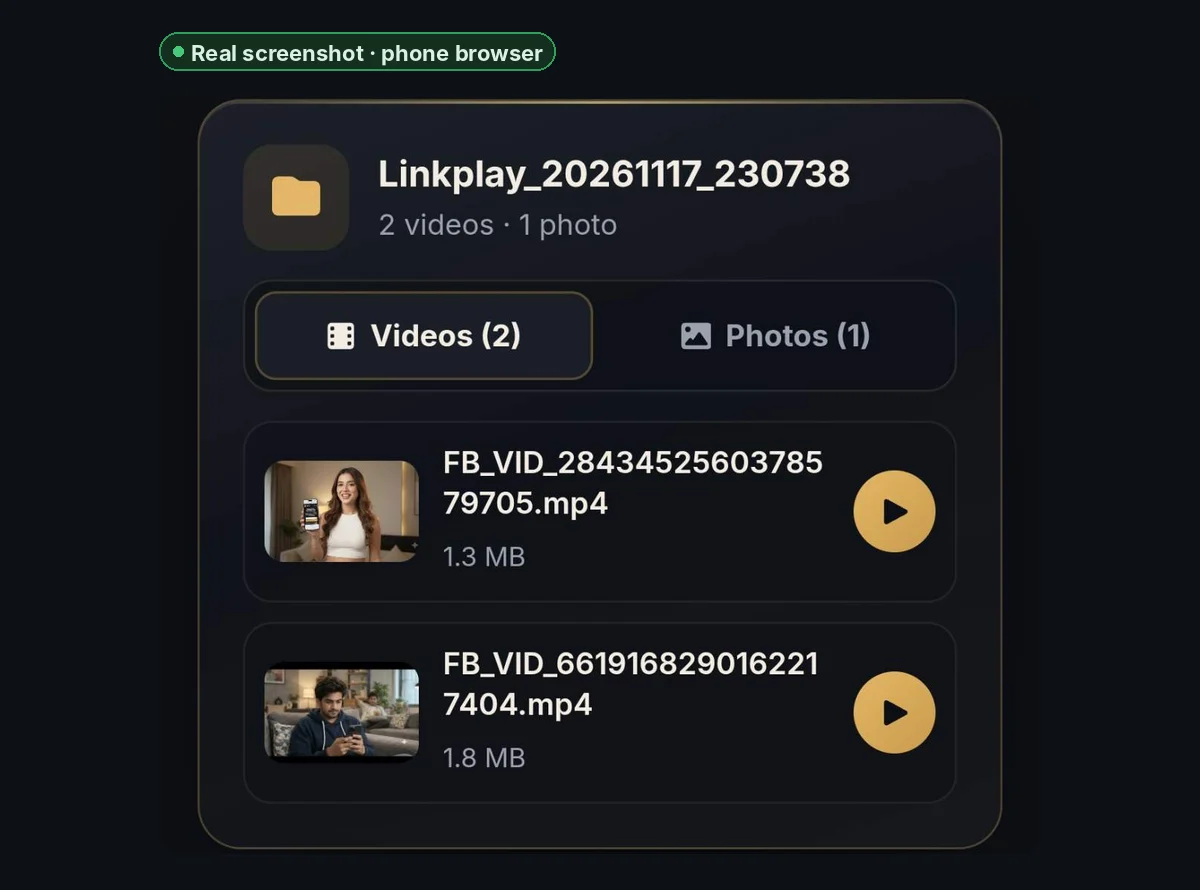
- Folder link — folder and photo links open with LinkPlay Premium; for a free single video, share that video's own link. See the TeraBox folder link opener.
- Stops and starts on mobile data — pick a lower quality, or switch to Wi-Fi and download instead. See the buffering guide.
Seeing a specific error message? This guide explains each one, and this one covers playback and download errors.
Your iPhone Stays Clean
- No configuration profile, no App Store download and no account — close the tab and nothing of LinkPlay remains.
- Your resume points live in Safari’s own website data; clearing Safari history removes them.
- Avoid “TeraBox Mod” apps and unofficial profiles that ask you to trust them. Read the TeraBox safety guide and our privacy policy.
FAQs — TeraBox on iPhone & iPad
Is there a TeraBox player for iPhone that needs no app? +
Yes. LinkPlay works as a TeraBox player inside Safari on iPhone and iPad. Paste the TeraBox link, tap Generate Link and then Watch Now. Nothing is installed and no TeraBox account is needed.
How do I download a TeraBox video on iPhone? +
Paste the link into LinkPlay, tap Generate Link and then Download. Safari asks to confirm the download and saves the file to the Downloads folder in the Files app.
How do I save a TeraBox video to my iPhone gallery? +
After the download finishes, open the Files app, go to Downloads, open the video, tap the Share button and choose Save Video. It then appears in the Photos app. This works for MP4 and MOV files.
Where do downloaded TeraBox videos go on iPhone? +
Safari saves them to the Downloads folder in the Files app, either in iCloud Drive or On My iPhone. You can change the location in Settings › Safari › Downloads.
Why does a TeraBox video not play on iPhone? +
Usually because the file is MKV, a format Safari and the Photos app do not support. Download the file and open it from the Files app in a free player such as VLC for Mobile. MP4 videos play normally.
Does LinkPlay work on iPad? +
Yes. LinkPlay works the same way in Safari on iPad, including Split View. Downloaded videos go to the Files app.
Can I use Chrome instead of Safari on iPhone? +
Yes. LinkPlay works in Safari, Chrome, Edge and other browsers on iPhone and iPad. All of them save downloads to the Files app.
Is LinkPlay a TeraBox online video player for iPhone? +
Yes. Tap Watch Now and the video streams directly in Safari, without being saved to your iPhone. When TeraBox provides several qualities, you can choose between them.
Does LinkPlay open 1024TeraBox links on iPhone? +
Yes. A 1024terabox.com link opens in Safari exactly like a terabox.com link — copy it, paste it into LinkPlay and tap Generate Link.
Can I watch TeraBox videos on my TV from an iPhone? +
Yes. Start the video, then open Control Center and use Screen Mirroring to send it to an Apple TV or AirPlay-compatible smart TV.
Do I need the TeraBox app from the App Store? +
Only if you want to manage your own TeraBox storage. To watch or save a video someone shared with you, Safari and LinkPlay are enough, and no login is required.
Do I have to pay to use LinkPlay on iPhone? +
No. Watching and saving TeraBox videos on iPhone costs nothing. Premium (₹49 for 30 days) is only for people who want unlimited downloads and no ads.