TeraBox Player and Downloader for PC
Windows, Mac, Linux & Chromebook — No App
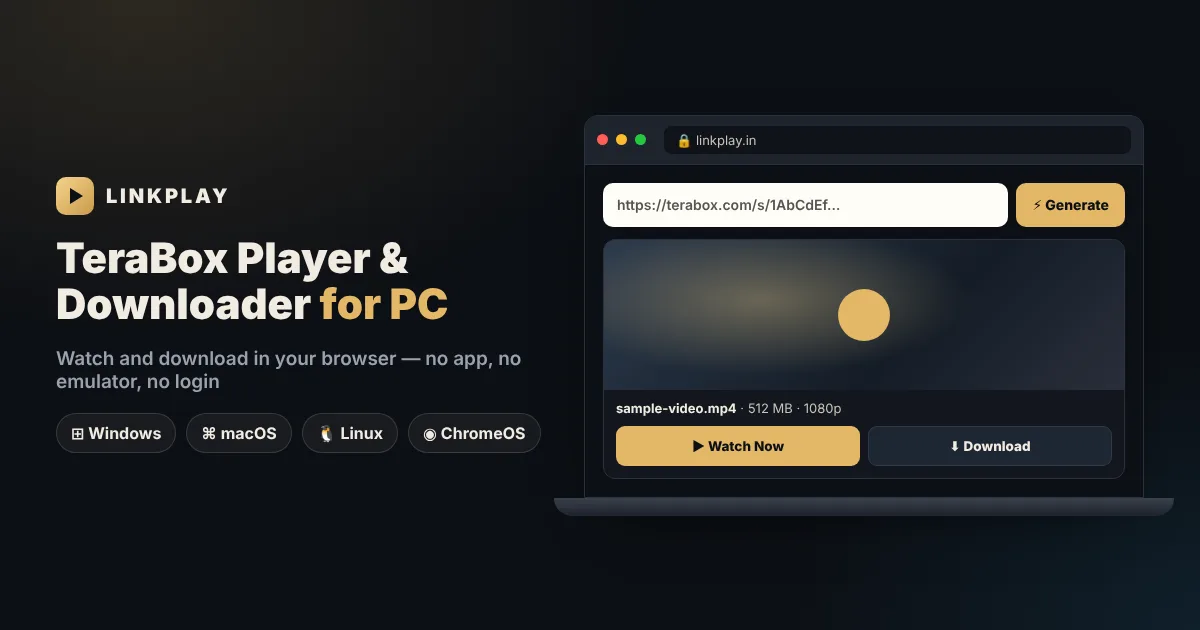
Paste a TeraBox link below to watch it on your computer or save the original file — right in Chrome, Edge, Firefox or Safari. No TeraBox app, no emulator, no login. One free page that works as a TeraBox online player for PC, a TeraBox video downloader for PC and a TeraBox link opener for your laptop.
Why TeraBox Is Hard to Use on a Computer
TeraBox was built mainly for phones. When you open a shared link on a laptop, the web page often keeps pointing you towards the app, asks you to sign in, or offers the download only through the TeraBox desktop client. For someone who just wants to watch a single video a friend sent, that is a lot of work.
People usually try one of three workarounds — and each has a catch:
- Installing the TeraBox desktop app — it needs an account, takes up space and has no Linux version.
- Running the phone app in BlueStacks — an Android emulator is heavy, slow on older laptops and still requires a login.
- Random “TeraBox downloader” sites — many push pop-ups, fake download buttons or extensions you never asked for.
LinkPlay takes a simpler route. It is a TeraBox player and downloader that runs in your browser, so the same page works on Windows, macOS, Linux and ChromeOS. Paste the share link, and the video is ready to stream or save. If you were looking for TeraBox for PC or a TeraBox downloader for PC that installs nothing, this page is exactly that.
How to Open a TeraBox Link on PC in 3 Steps
- 1Copy the TeraBox share link from WhatsApp Web, Telegram Desktop, an email or wherever you received it.
- 2Paste it into the box at the top of this page and click Generate Link. The video card shows the file name, size and length.
- 3Click Watch Now to play it on the page, or Download to save the original file to your computer.
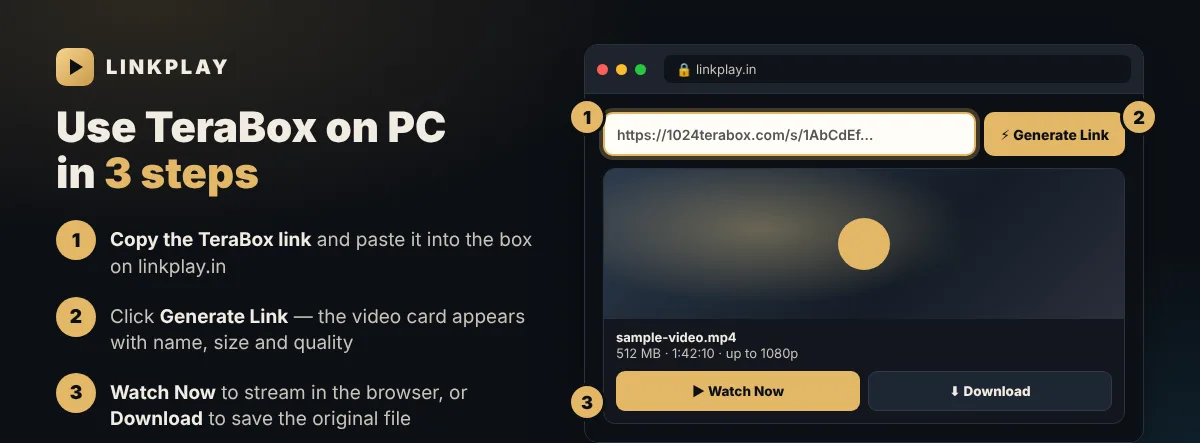
That is all. There is no account to create and no software to keep updated. If you close the tab by mistake, the video appears under Continue watching the next time you open LinkPlay in the same browser, and resumes from where you stopped.
Stream, Save or Open Links — All in One Browser Tab
Whatever you call it — a TeraBox player, viewer, link opener or downloader — on a computer you usually want one of four things. LinkPlay handles all of them on the same page:
Play TeraBox videos online
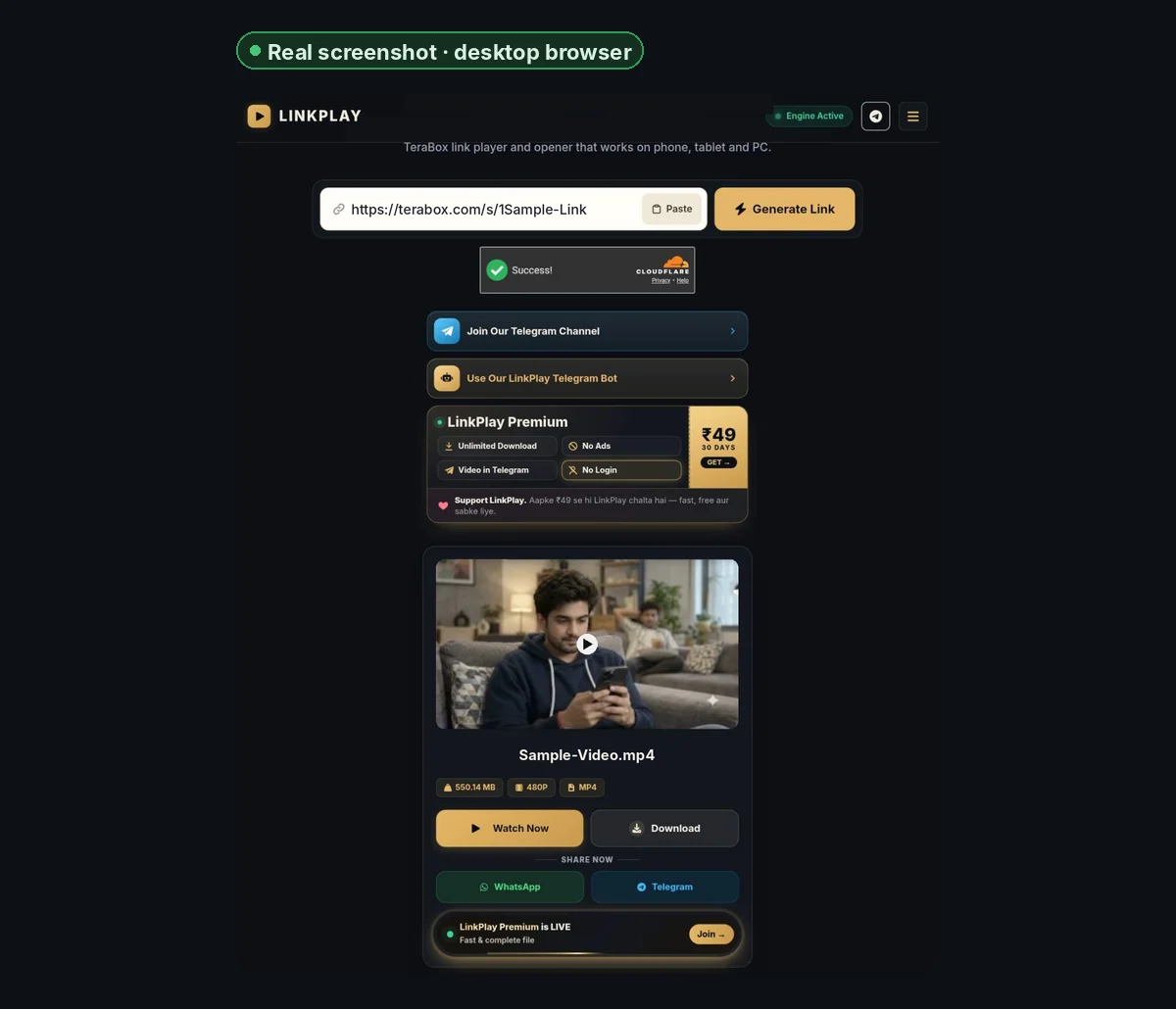
Use it as a TeraBox online video player on PC: the video streams in the browser tab, with quality options when TeraBox provides them. Nothing is saved to your disk.
Download the original video
Works as a TeraBox video downloader for PC: click Download and the browser saves the original file. Each download link stays active for about 15 minutes.
Open any TeraBox link
A TeraBox link opener for every share format — terabox.com, 1024terabox.com, teraboxlink.com, terafileshare.com and other TeraBox domains. Paste the link and the video appears.
Works on office and shared PCs
Nothing to install means no admin rights are needed — useful on work laptops, college computers or a shared family PC.
Many people search for “tera box player”, “tera box downloader” or “terabox viewer” — they all mean the same thing here: paste the TeraBox link, then play or download the video. For links shared in Telegram, the TeraBox downloader bot does the same job inside the chat.
Browser, TeraBox App or Emulator: Which Is Best on PC?
There are three realistic ways to open TeraBox videos on a computer. Here is how they compare for the most common task — watching or saving a video someone shared with you:
| LinkPlay (browser) | TeraBox desktop app | BlueStacks + phone app | |
|---|---|---|---|
| Installation | None | Required | Emulator + app |
| TeraBox login | Not needed | Required | Required |
| Windows / Mac | Yes | Yes | Yes |
| Linux / Chromebook | Yes | No official app | Limited |
| Load on older laptops | Light — one browser tab | Moderate | Heavy |
| Best for | Watching or saving shared videos | Managing your own cloud storage | Rarely needed |
If you upload and organise your own files on TeraBox, the official app makes sense. For opening links that other people send you, a browser is faster and keeps your computer clean.
TeraBox on Windows, Mac, Linux and Chromebook
LinkPlay works the same on every desktop system. These notes cover the small differences you may notice on each one:
Windows 10 and Windows 11
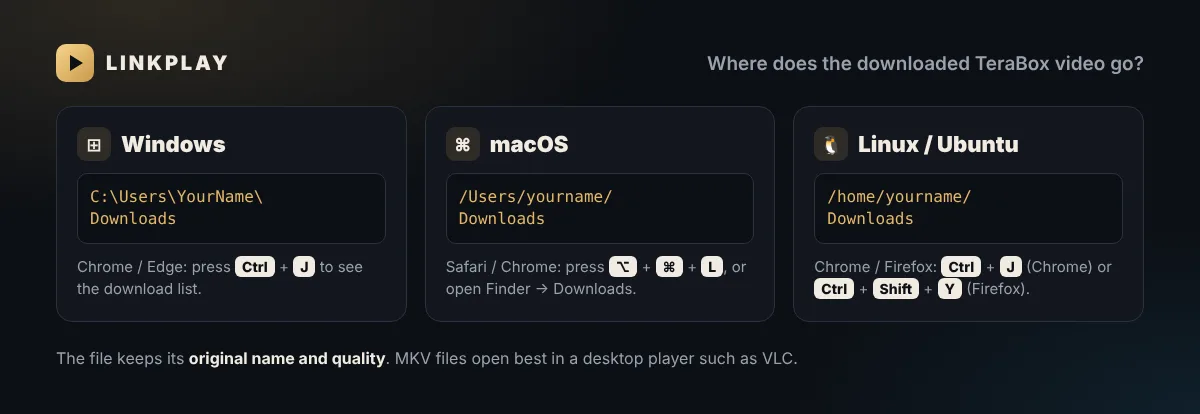
Use Chrome, Edge, Firefox, Brave or Opera. Downloads are saved to C:\Users\YourName\Downloads; press Ctrl + J to open the list.
Windows plays MP4 files in the built-in Media Player. For MKV files, VLC is the most reliable choice.
Mac and MacBook
Safari and Chrome both work. Videos are saved to the Downloads folder in Finder; press ⌥ + ⌘ + L to view them.
QuickTime opens MP4 files. Use VLC or IINA for MKV files.
Linux and Ubuntu
Chrome, Chromium and Firefox work well. Files are saved to ~/Downloads.
Some distributions ship Firefox without every video codec. If playback fails, try Chrome or install the restricted-extras codec package for your distribution.
Chromebook
Open linkplay.in in Chrome and use it as you would on any other computer. Downloads appear in the Files app under Downloads.
Chromebooks handle MP4 well; MKV support depends on the codecs inside the file.
Downloading Large TeraBox Files on a PC
A computer is the best place to save long or high-quality videos. A few habits make large downloads go smoothly:
- You get the original file — LinkPlay does not re-encode or compress it, so the quality matches what was uploaded.
- Use a stable connection — wired Ethernet or strong Wi-Fi helps with files of several gigabytes.
- Keep the laptop awake — if the computer sleeps, the download may pause. Plug in the charger for long downloads.
- Start promptly — the download link stays active for about 15 minutes. If it expires, click Generate Link again for a fresh one.
- Check the free disk space — the video card shows the file size before you start.
Video Formats: MP4, MKV and Missing Sound
Whether a video plays inside the browser depends on how the file was encoded, not on LinkPlay or your computer. This is what to expect:
| File type | Plays in browser? | What to do |
|---|---|---|
| MP4 (H.264) | Yes, in every browser | Watch online or download |
| MKV | Often, depends on the codecs inside | If it fails, download and open in VLC |
| HEVC / H.265 | Varies by browser and hardware | Download and use VLC if the screen stays black |
| AC3 / E-AC3 audio | Video may play without sound | Download and play in VLC for full audio |
The usual reason for a TeraBox video with no sound on PC is AC3 or E-AC3 audio, which is common in movie-style MKV files. Browsers do not decode it, but desktop players do. Downloading the file and opening it in VLC Media Player (free on Windows, Mac and Linux) solves this in almost every case.
When TeraBox offers several stream qualities, LinkPlay lets you choose between them, from 480p up to 1080p. A lower quality can help on a slow connection, and the full original is always available through Download.
Open TeraBox Links in One Click With the Chrome Extension
If you receive TeraBox links often, the free LinkPlay Chrome extension saves you from copying and pasting. Once it is installed, right-click any TeraBox link on any page — WhatsApp Web, Telegram Web, Gmail, a forum — and choose Open with LinkPlay. The link opens straight in the player.
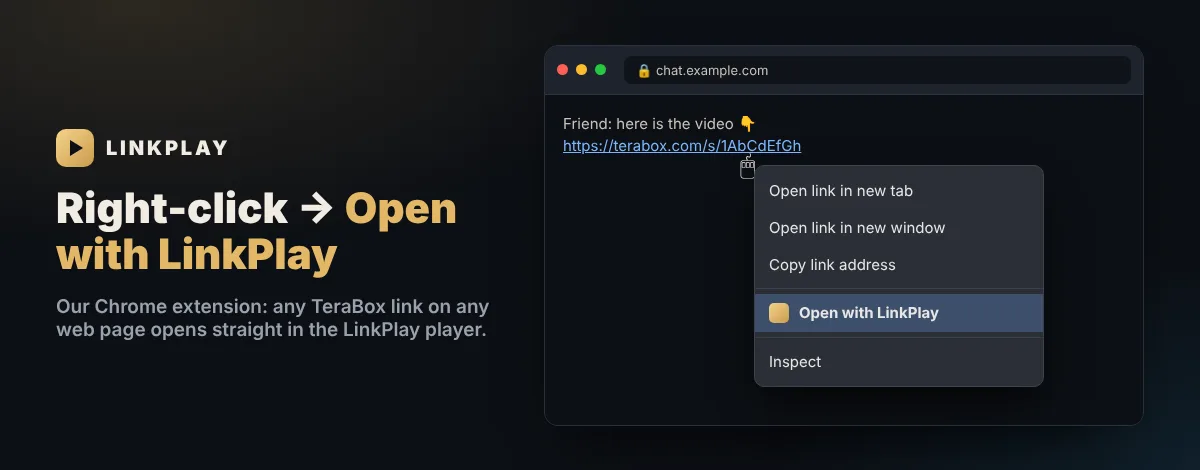
The extension only adds that menu option. It does not read the pages you visit or ask for your TeraBox account.
Watch on a Bigger Screen
- Full screen — use the full-screen button in the player, and press Esc to exit.
- Cast to your TV from Chrome — open the three-dot menu, choose Cast and pick your TV or Chromecast.
- HDMI — connect the laptop to the TV with a cable and play the video in full screen.
- Offline viewing — download the file first, then play it later without an internet connection.
Fixing TeraBox Problems on a Computer
- Nothing happens after Generate Link — complete the short security check under the box, then click again. Turn off aggressive script blockers for linkplay.in if needed.
- Black screen with sound, or no picture — the file is probably HEVC or MKV. Download it and open it in VLC.
- “Link invalid or expired” — the file was deleted or the share was cancelled. Ask the sender for a new link. See expired and invalid TeraBox links.
- Folder link — folder and photo links open with LinkPlay Premium; for a free single video, share that video's own link. See the TeraBox folder link opener.
- Buffering — choose a lower quality or download the file. Our buffering guide has more fixes.
- Download stopped — the 15-minute link may have expired. Generate the link again.
For every error message and what it means, see why a TeraBox link fails and TeraBox not playing or downloading.
Using Telegram Desktop?
If your TeraBox links arrive in Telegram Desktop, you do not need to switch windows. Send the link to the LinkPlay TeraBox downloader bot and it replies with Play and Download buttons in the same chat. Downloads from Telegram Desktop also go to your Downloads folder.
Nothing Left Behind on Your Computer
- LinkPlay never asks for your TeraBox email, password or OTP. Only the public share link is needed.
- Nothing is installed on your computer, so there is nothing running in the background afterwards.
- Continue watching is stored only in your own browser, and you can clear it at any time.
- LinkPlay does not host or upload anyone’s files; it only opens the links you paste. Read our privacy policy and the TeraBox safety guide.
FAQs — TeraBox on PC
Is there a TeraBox player for PC that needs no app? +
Yes. LinkPlay runs in your web browser, so it works as a TeraBox player on any Windows, Mac, Linux or Chromebook computer. Paste the share link, click Generate Link and the video plays on the page. Nothing is installed.
How do I download a TeraBox video on my PC or laptop? +
Paste the TeraBox link into LinkPlay, click Generate Link and then click Download. Your browser saves the original file to the Downloads folder, the same place as any other download.
Does LinkPlay work on Windows 10 and Windows 11? +
Yes. It works in Chrome, Edge, Firefox, Brave and Opera on both Windows 10 and Windows 11. No setup is needed beyond an up-to-date browser.
Can I use TeraBox on a Mac or MacBook without the app? +
Yes. Open linkplay.in in Safari or Chrome on your Mac, paste the link and watch. Downloaded videos go to the Downloads folder in Finder.
Is there a TeraBox app for Linux or Ubuntu? +
TeraBox does not offer an official Linux app. On Linux, LinkPlay in Chrome, Chromium or Firefox is the simplest way to watch and download TeraBox videos.
Do I need BlueStacks or an emulator to use TeraBox on PC? +
No. An Android emulator is only needed if you want the TeraBox phone app on a computer. To watch or download a shared video, a browser is enough.
Why does the TeraBox video play without sound on my PC? +
This usually happens when the file uses an audio format the browser cannot decode, such as AC3 or E-AC3, which is common in MKV files. Download the video and open it in VLC Media Player, which plays these formats with sound.
Where do downloaded TeraBox videos go on a PC? +
They go to your browser’s download folder, which is normally Downloads. Press Ctrl + J in Chrome or Edge on Windows and Linux, or Option + Command + L on a Mac, to see the file.
Can I watch TeraBox videos on my TV from a PC? +
Yes. In Chrome, open the three-dot menu, choose Cast and select your TV or Chromecast. You can also connect the laptop to the TV with an HDMI cable.
Is there a TeraBox online video player for PC? +
Yes. LinkPlay is a free TeraBox online video player that runs in any desktop browser. Paste the TeraBox link, click Generate Link and then Watch Now to stream the video without downloading it.
How do I open a TeraBox link on my laptop? +
Copy the TeraBox share link, open linkplay.in on your laptop, paste the link and click Generate Link. LinkPlay works as a TeraBox link opener for terabox.com, 1024terabox.com and the other TeraBox domains.
Can I get a TeraBox direct download link on PC? +
Yes. After you click Generate Link, the Download button gives you a direct download of the original file in your browser. The link stays active for about 15 minutes; if it expires, generate it again.
Is LinkPlay free on PC? +
Yes. Opening, streaming and downloading TeraBox videos on LinkPlay is free and needs no account. LinkPlay Premium (₹49 for 30 days) is optional and adds unlimited downloads and an ad-free experience.